> For the complete documentation index, see [llms.txt](https://docs.amesa.com/llms.txt). Markdown versions of documentation pages are available by appending `.md` to page URLs; this page is available as [Markdown](https://docs.amesa.com/train-agents/submit-a-training-job-through-the-ui.md).
# Submit a Training Job through the UI
## About Cluster Training
AMESA agent systems use [Kubernetes](https://kubernetes.io/) clusters to train at scale. A cluster is a collection of computers that work on large tasks simultaneously. This provides enough compute to complete large training tasks as efficiently as possible.
AMESA offers two options for cluster training:
* Use AMESA's Training as a Service offering to train on our clusters
* Use your own compute clusters through Azure, AWS, or another provider
## Ensure that Your Agent System is Ready
Before you submit your job for training on a cluster, make sure that your agent is fully configured and all the parameters have been set. That means checking all the agent components:
* Goals
* Perceptors
* Orchestrators, including goals for learned selectors and scenarios
* Skill agents, including goals for learned skills
* Scenarios, including scenario flows
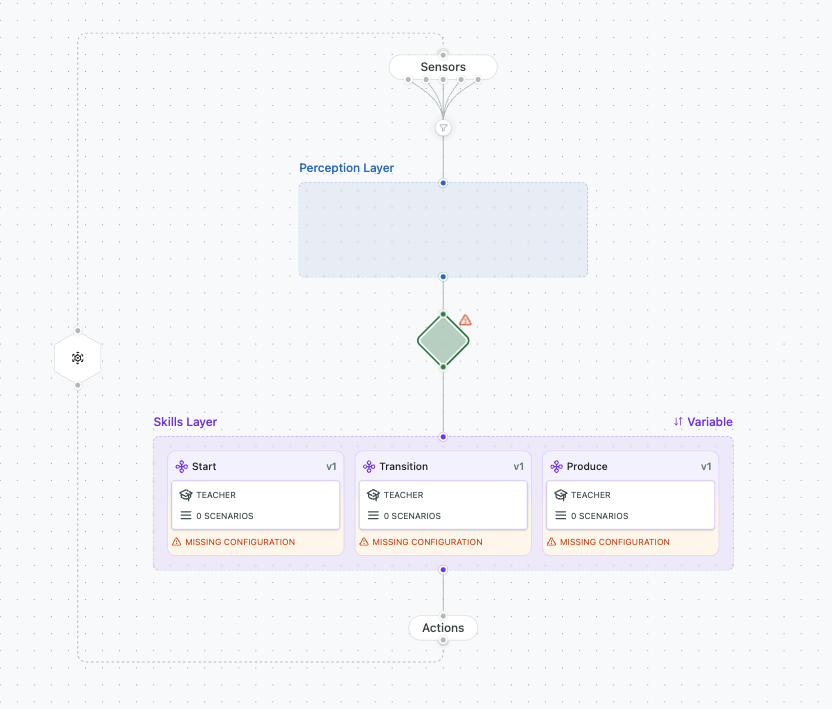
Any component of the agent with a warning sign is not fully configured and not ready for training. Go back to edit that agent component and make sure that all of the fields are filled out.
## Choose the Right Cluster
You can train on your own cluster or on AMESA’s clusters using training as a service (TaaS) credits. If you want to use AMESA’s clusters, ensure that you have credits available.
To train on your own cluster, make sure that you have [set your cluster up ](/training-infrastructure/creating-a-cluster.md)and installed AMESA successfully.
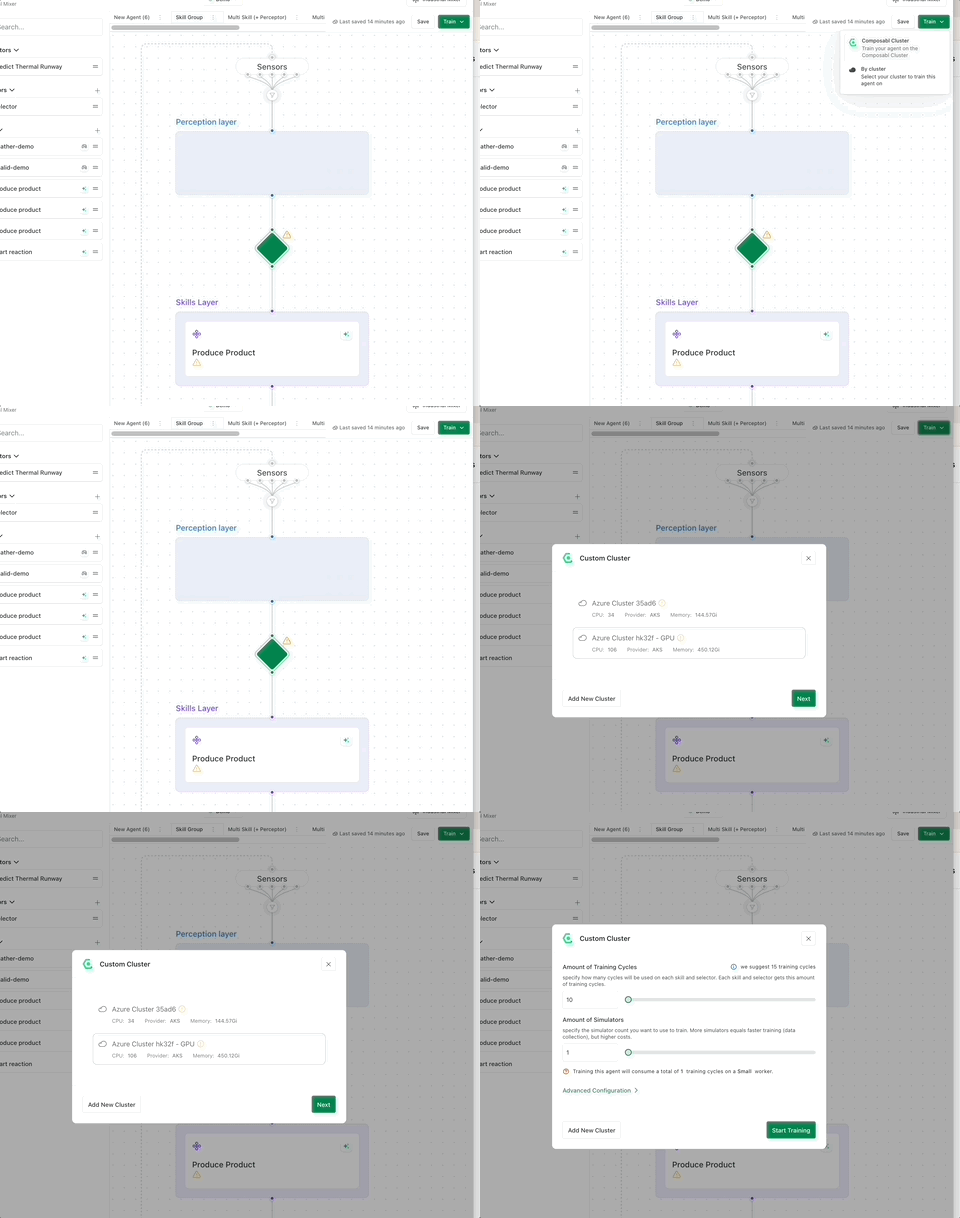
Click Train and then choose the cluster option in the menu. You will then have the option to configure your training session.
## Configure Your Training Session
Training session configuration options are the same whether you’re using TaaS or training on your own cluster.
### Set the Number of Training Cycles
A training cycle is a complete pass through the entire task, with the agent system continuing until it reaches success or some other stop criteria. Your agent system will train each skill one at a time for the selected number of training cycles, starting from the bottom of the agent system design.
A training cycle involves about 1,000 agent decisions. Depending on the complexity of the task, agent systems may need to complete anywhere between 100 and several thousand training cycles to become proficient.
### Set the Number of Simulators
You can run multiple simulators in parallel to speed up training. If you run more than one simulator during a training, the number of training cycles selected will be multiplied by the number of simulators, so 5 training cycles with 3 simulators selected would lead to 15 training cycles total.
You can use the Advanced Configuration to choose how powerful each machine running a simulator should be. If you choose Small, each training cycle selected will result in one training cycle completed. If you choose GPU, you will get 4 training cycles for each training cycle.
More training cycles running simultaneously will speed up training, but also increase costs. How long your training takes also depends on the complexity of your agent system and your simulator.
## Advanced Configuration
Click on `Advanced Configuration` for more options for your training session.
* Rollout fragment length: Set this to
* **Benchmark No. of Episodes Per Scenario:** Configure this setting to tell AMESA how many benchmark episodes should be run after training is completed
* **Number of Steps Per Episode:** Change this setting from the default when you know how many steps should be in a single episode based on subject matter expertise.
* **Non-Deterministic Benchmark:** This toggle allows you to control whether all benchmark episodes have the same starting place or whether they vary randomly within each scenario.
## Allocate Training Cycles
If you are training an orchestration with multiple agents within it, you have the option to allocate the total number of training cycles among all the agents and orchestrators that need to be trained. Assign more cycles to the agents that have more difficult skills to learn; assign fewer cycles to those that you think will learn more quickly.
## Start Training
When you have configured your settings correctly and allocated the training cycles among your agents and orchestrators, click `Start Training`.
You will then be taken to the Training Sessions page. There you can follow the agent system training progress by viewing the real-time plots and updates.
Note that it will take a few minutes for the visualization to begin.
---
# Agent Instructions
This documentation is published with GitBook. GitBook is the documentation platform designed so that both humans and AI agents can read, navigate, and reason over technical content effectively. Learn more at gitbook.com.
## Querying This Documentation
If you need additional information that is not directly available in this page, you can query the documentation dynamically by asking a question.
Perform an HTTP GET request on the current page URL with the `ask` query parameter, and the optional `goal` query parameter:
```
GET https://docs.amesa.com/train-agents/submit-a-training-job-through-the-ui.md?ask=&goal=
```
`ask` is the immediate question: it should be specific, self-contained, and written in natural language.
`goal` is optional and describes the broader end goal you are ultimately trying to accomplish on behalf of the user. GitBook uses it to tailor the answer towards what is most useful for that goal.
The response will contain a direct answer to the question and relevant excerpts and sources from the documentation.
Use this mechanism when the answer is not explicitly present in the current page, you need clarification or additional context, or you want to retrieve related documentation sections.